> For the complete documentation index, see [llms.txt](https://pub-star.gitbook.io/docs/llms.txt). Markdown versions of documentation pages are available by appending `.md` to page URLs; this page is available as [Markdown](https://pub-star.gitbook.io/docs/1.6.0/ios-sdk/mediation-max.md).
# AppLovin MAX Mediation
This guide explains how to connect **PubStar** to **AppLovin MAX** on iOS using a custom SDK network and waterfall placements.
> **MAX must already be integrated in your iOS app**
>
> Complete base MAX setup first (SDK key, ad units, test ads), then add PubStar SDK + MAX adapter.
>
> **Recommended guides:**
>
> * [MAX iOS SDK integration](https://developers.applovin.com/en/max/ios/overview/integration/)
> * [MAX mediation overview (iOS)](https://developers.applovin.com/en/max/ios/overview/mediation/)
> * [PubStar iOS SDK integration](/docs/1.6.0/ios-sdk/integration.md)
## Requirements
* iOS 13.0+
* Xcode 15+ recommended
* Working AppLovin MAX integration on iOS
* PubStar App ID from [PubStar Dashboard](https://pubstar.io/)
* PubStar placement keys per ad format
## Installation (CocoaPods)
### Podfile
```ruby
platform :ios, '13.0'
target 'YourAppTarget' do
use_frameworks! :linkage => :static
pod 'Pubstar', '~> 1.6.0'
pod 'PubStarMediationMaxAdapter', '~> 1.6.0'
end
```
Run `pod install`, then open `.xcworkspace`.
## Configuration
### 1. Add PubStar App ID to Info.plist
Please refer to the [Info.plist Configuration Guide](/docs/1.6.0/ios-sdk/integration.md#1-update-your-infoplist) to set up your PubStar App ID.
***
## MAX Console Setup (iOS)
1. Create an SDK Custom Network in MAX.
2. Set iOS Adapter Class Name to PubStar adapter.
3. Add placements on each MAX ad unit (by CPM tiers).
4. Set Placement ID to PubStar placement key.
### Custom network setup
#### Step 1: Add Custom Network
In MAX, go to `Mediation` → `Manage` → `Networks` and add a custom network:
Create custom network in MAX.
#### Step 2: Add placements to ad units
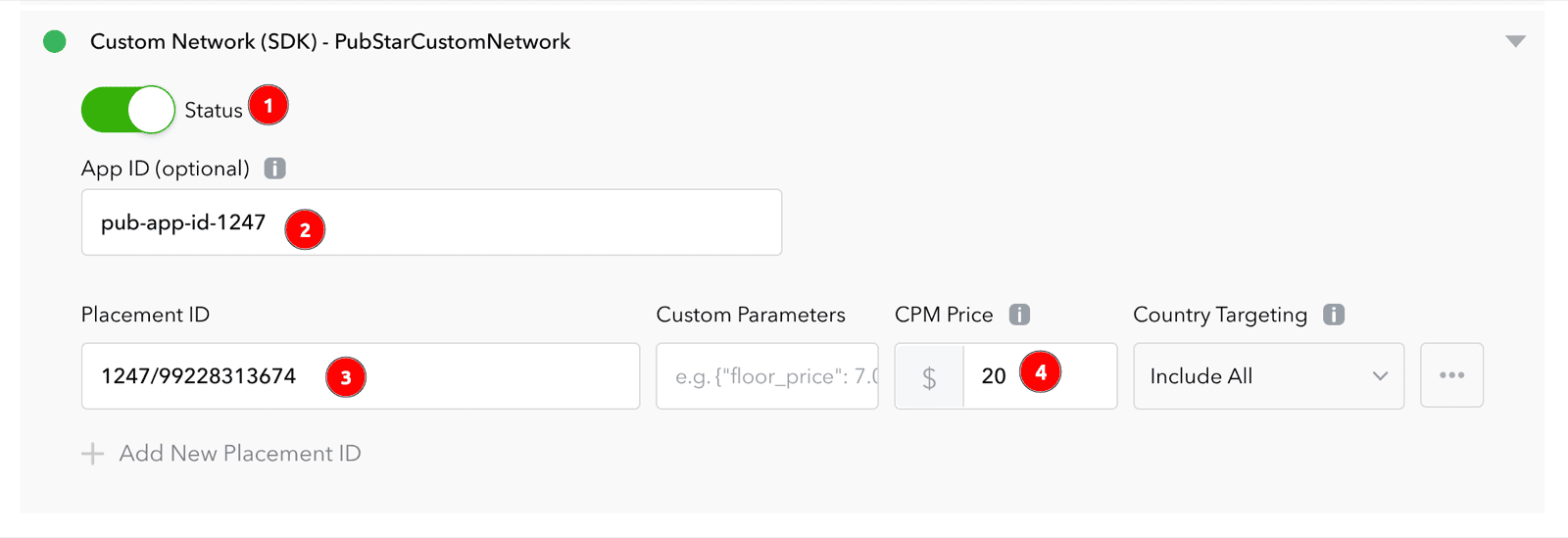
Open each iOS ad unit, enable PubStar custom network, and add placement rows by CPM strategy:
Add placements to MAX ad unit.
### Custom network values
* **Network Type** — `SDK`
* **iOS Adapter Class Name**
```
PubStarMAXMediationAdapter
```
Legacy alias also available: `PubStarMAMediationAdapter`.
* **App ID** — your PubStar app ID (same value as `io.pubstar.key`)
* **Placement ID** — PubStar placement key (plain text), for example: `1233/99228313580` (banner)
### Supported ad formats
| MAX format | Test placement key |
| ------------ | ------------------ |
| Banner | `1233/99228313580` |
| Interstitial | `1233/99228313582` |
| Rewarded | `1233/99228313584` |
| App Open | `1233/99228313583` |
These test keys pair with `pub-app-id-1233`. Replace with production keys before release. **Native** is not listed: native mediation only works with a **real native placement key** from your PubStar Dashboard (test native keys are not supported).
### Validation checklist
* `Pubstar` and `PubStarMediationMaxAdapter` pods are installed.
* `io.pubstar.key` exists in app `Info.plist`.
* MAX custom network uses correct iOS adapter class name.
* Each placement has valid App ID and Placement ID.
* Placement key format matches the ad format.
### Troubleshooting
**Custom network not called:** verify class name, ad unit waterfall order, and CPM competition.
**No fill:** verify placement key and format mapping with PubStar support.
**Native not loading / no fill** — PubStar native in MAX mediation **only works with a real native placement key** from your PubStar Dashboard for this app. Do **not** use shared test native keys (for example `1233/99228313581` with `pub-app-id-1233`); they will not serve. Use your dashboard native placement ID on the native MAX ad unit only.
**Recent MAX changes:** wait 30–60 minutes and relaunch app before retest.